Context stays with the project
The agent works from project files and configuration instead of a pasted summary that goes stale.

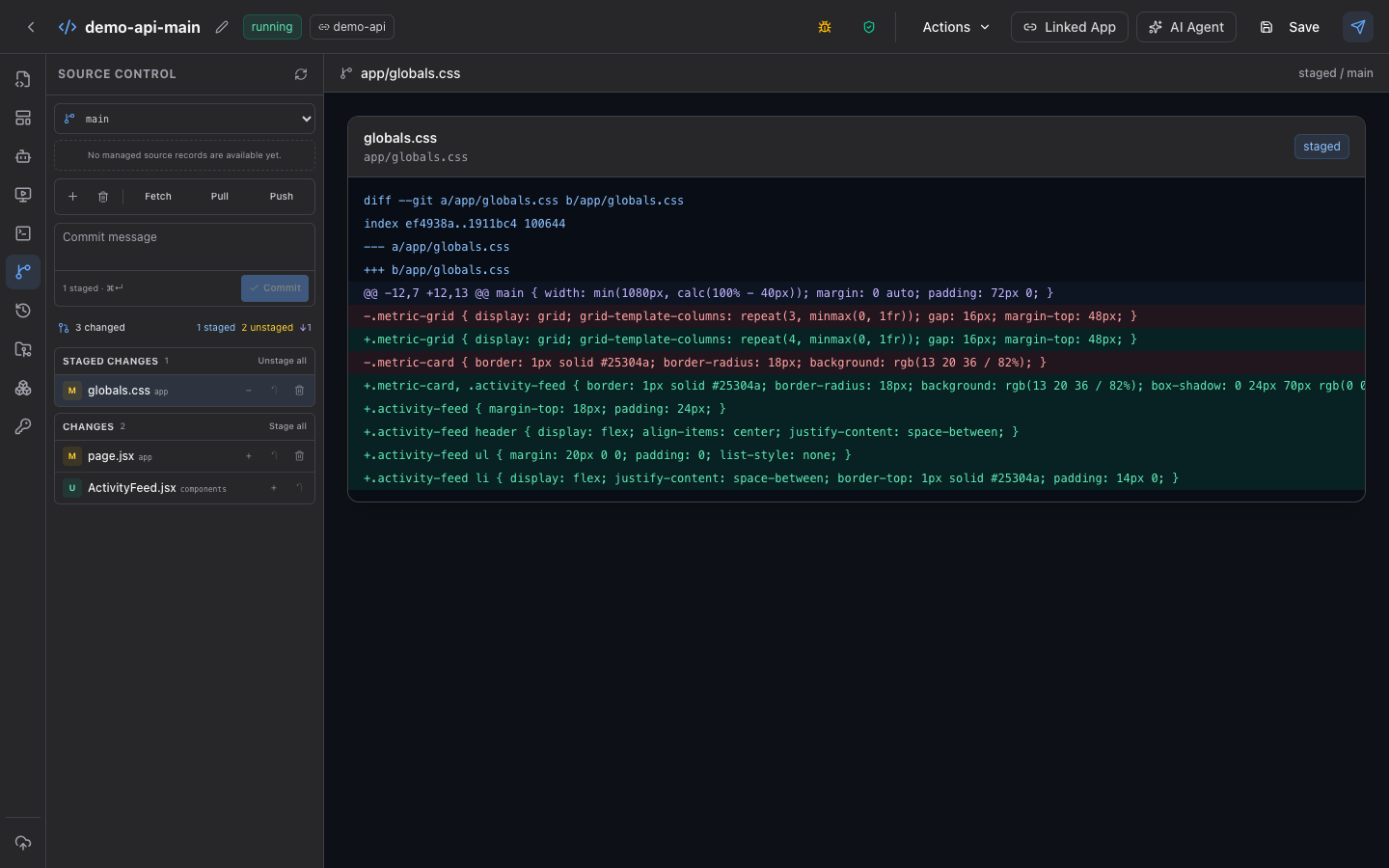
Give the Adios agent the same project context your team uses: source files, Git state, declared tasks, preview output, logs, configuration, and the path to deployment. The work stays visible while you decide what to keep.
 Actual Adios UI · demo data
The agent works from project files and configuration instead of a pasted summary that goes stale.
Review the affected files, Git diff, task output, preview, and logs before accepting the result.
AI can help prepare and verify a change without turning every generated edit into a deployment.
Where AI workflows break
A chat window can suggest code, but it does not automatically know the current repository, runtime configuration, failed build, preview state, or deployment history. Developers lose time moving that context between tools and then proving the result still works.
What changes with Adios
An Adios workspace keeps AI-assisted edits beside the project files, Git state, declared tasks, previews, and logs. The developer stays in control of the diff and the release decision.
The working loop
The workspace carries the evidence from the first instruction through the final review.
Open the repository or project that will own the resulting code.
Use the current tree, relevant files, and project configuration to form the plan.
Use declared build and verification tasks, then inspect their output and runtime logs.
Keep the diff visible and choose when the accepted version moves forward.
Review evidence
The useful output is not just a generated answer. It is a reviewable project state with verification evidence.
Inspect the concrete source changes instead of accepting an opaque generated bundle.
Follow build and project-check output without exposing a general browser shell.
Open the candidate application and read the logs tied to that workspace state.
Keep source, runtime configuration, health, and release actions connected.
Questions before connecting AI
It does not have to be. You can work in the Adios web workspace or keep a local project connected through the Adios CLI, then use the same source-backed preview and deployment path.
Yes. AI-assisted work lands in project files where you can inspect the diff, run declared checks, open a preview, and review logs before choosing what to commit or deploy.
No. The browser workspace uses scoped project operations and declared tasks. A general interactive shell is not part of the current browser experience.
Yes. A workspace can start from existing source so the AI works against the project your team already owns rather than an isolated code snippet.
Start with real source
Open real source, ask for a change, verify the result, and keep the accepted work connected to Git and deployment.
Start building