A defined place to work
The agent operates against one selected workspace rather than an unscoped platform or host filesystem.

Connect an MCP-capable AI client to a scoped Adios workspace. The agent can work with project source, request declared tasks, inspect previews and logs, and return changes your team can review without receiving a general browser shell or platform credentials.
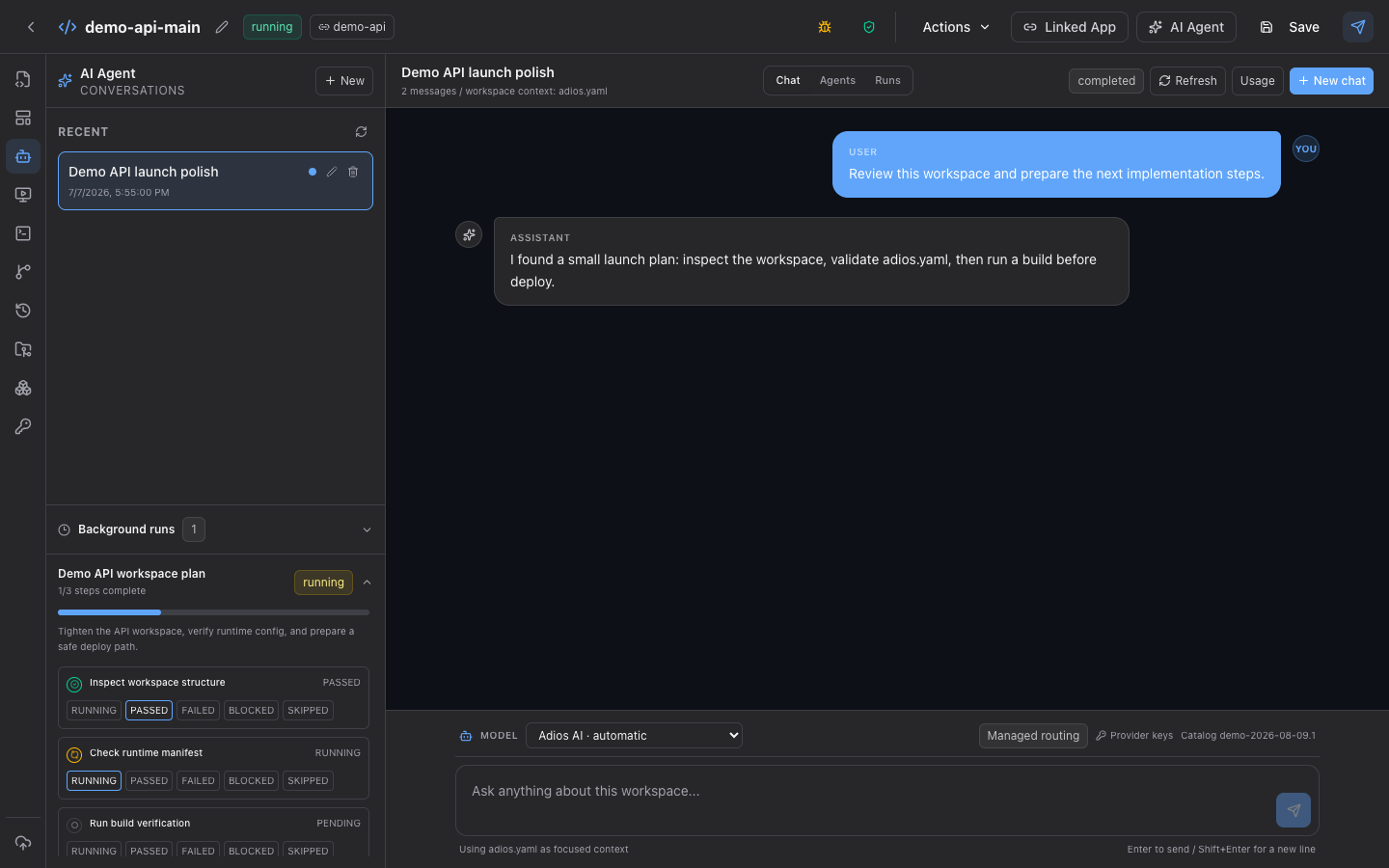 Actual Adios UI · demo data
The agent operates against one selected workspace rather than an unscoped platform or host filesystem.
File, Git, task, preview, and log operations retain the active team and workspace context.
Changes remain attached to source and can move through human review, Git, preview, and deployment.
Where AI workflows break
Temporary execution can prove that a snippet runs, but software work also needs owned source, project configuration, repeatable checks, preview evidence, logs, and a controlled path to release. Without that context, every agent run starts by rebuilding the project around it.
What changes with Adios
Adios treats confinement as a boundary around agent work, not as the product identity. The agent works in a scoped, source-backed environment and returns changes to the same project lifecycle developers use.
The working loop
The connection starts with an authenticated user and a selected workspace, then narrows every action to that context.
Authenticate the AI client and choose the team and workspace it should use.
Let the agent read the relevant tree, files, Git state, and project context.
Edit project files and request declared tasks instead of opening an unrestricted browser terminal.
Use previews, logs, and diffs to return a result the project owner can assess.
Review evidence
A useful agent environment makes the work understandable after the model finishes responding.
Available operations retain the selected team, workspace, and resource context.
The resulting files and Git diff remain available for developer review.
Declared task output, previews, and logs show how the changed project behaved.
Deployment and destructive operations can remain behind explicit confirmation and policy.
Questions before connecting AI
It provides a confined working boundary for an agent, but Adios models the product as a source-backed environment rather than a disposable sandbox. Files, Git state, declared tasks, previews, and logs stay connected to the project.
No. Current agent access uses scoped tools and declared project tasks. A general interactive browser shell is not exposed.
Adios supports MCP-capable clients documented in the public MCP catalog. Authentication and available operations still depend on the connected user, team, and workspace.
Sensitive and publishing actions can require explicit approval. The available action and approval policy are checked in the active Adios context rather than inferred from the agent prompt.
Start with real source
Start with an MCP-capable client, select the intended workspace, and keep its edits and verification evidence attached to the source.
Connect an AI client